Open ReturnKit and sign in
Use the same email wherever you open the planner. If cloud sync is on, your workspace can follow you between devices.
ReturnKit setup guide
ReturnKit is the same full planner across laptop, iPad, iPhone and Android. Start with the device in your hand. Add capture tools only if they make your day lighter.


Start here
No long setup ritual. Your planner works in the browser before you install or connect anything else.
Use the same email wherever you open the planner. If cloud sync is on, your workspace can follow you between devices.
Pin the tab on a laptop, or add ReturnKit to your Home Screen on a phone or iPad. That is the whole essential setup.
Pick the screen in front of you
Each route lands in the same Life Planner and Creator Studio. The phone version is adapted for the smaller screen, not reduced.

Use the wider canvas for the whole week, Secretary drafts, Creator Studio and focused work.
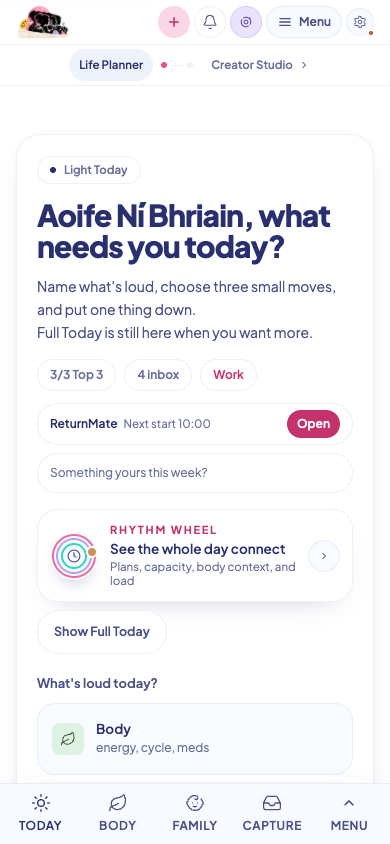
Install the full ReturnKit PWA from Safari so it opens like an app. On iPad you keep the wider canvas. On iPhone the navigation and cards reshape for touch.

Android installs the full ReturnKit PWA. Links and text shared from other apps can open directly in Capture for you to review.
Optional doors
The planner is complete without these. Connect a door when it removes a repeated step from your real day.
Save a page or selected text without opening the planner. The capture only key cannot read your workspace.
Add Capture →
Protect a timed block with optional site guardrails. It starts when you ask and stays separate from your planner data.
Add Focus →Forward newsletters, forms or receipts from your account email. It can add a note, never read your planner.
Set up inside Capture →What happens after capture
ReturnKit holds the thought, then leaves the decision with you. That boundary is deliberate.
Capture once. Decide when you have the capacity.
Before you go
No. It is the full responsive planner, including Life Planner, Creator Studio and Capture. The layout adapts to a smaller screen, while the underlying workspace stays the same.
No. ReturnKit works in a modern browser. Installing the PWA simply keeps it within reach and gives it an app like window.
ReturnKit is local first. Each browser has its own local home. Sign in and use cloud sync if you want your workspace to follow you between Chrome, Safari, Perplexity, your phone and other devices.
The browser Capture companion uses a capture only key. It can add an item to Capture but cannot read the planner. Email capture follows the same one way boundary.
Today is your starting point, not the whole planner. On desktop or iPad, choose All sections at the top. On your phone, choose Menu at the bottom. Pick Finance, Body, Work, Family or Settings there. Full changes the Today view; it is not the menu for other sections. Use Find something to search.
Open ReturnKit and choose Menu → How it works, or All sections → Settings → My life → Feature tour. You can explore sections without restarting your life-stage intro. This page is for device setup and optional capture doors.
Ready when you are
Open the planner in this browser now. Install it later if that would make returning easier.
Open ReturnKit